
Screenshot to editable Excel: a tested example
Use Image to spreadsheet to turn a clear table screenshot into editable cells. Select an image, choose “Recognize table”, compare the result with the original, and edit any cells that need correction before downloading XLSX. Processing and preview are free; downloading your own results requires sign-in and an active online pass.
Turn a screenshot into editable Excel cells
- Select a clear PNG, JPG or WebP screenshot of one complete table. On a computer, you can also drop an image or paste a screenshot with Ctrl+V.
- Select “Recognize table” and wait. The first use loads processing resources, so stay connected while they load.
- Compare the recognized cells with the image. Select a cell to inspect its source area and edit the text directly. Review highlighted cells carefully, and check important values even when they are not highlighted.
- Select “Download Excel” to save an XLSX file with the image’s base name. Open it in Excel and check the rows, columns and values.
The result contains editable cells. Original fonts, colors and complex layouts may change. A single successful sample does not establish an accuracy rate for other screenshots.
English example: screenshot, workbook and one edit
This synthetic screenshot has nine rows, including the header, and seven columns: ID, Item, Unit price, Quantity, Amount, Rate and Date. All labels and sample contents are in English.
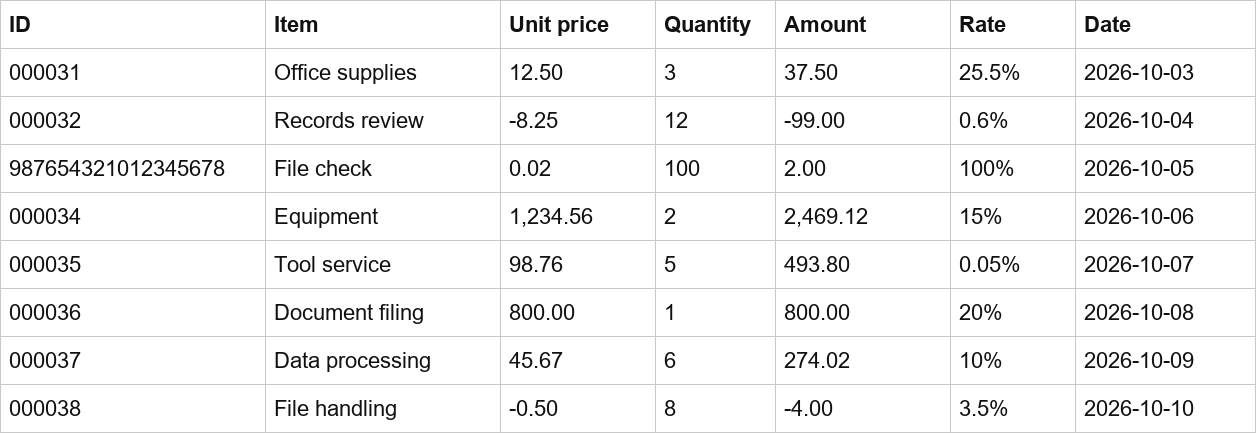
| ID | Item | Unit price | Quantity | Amount | Rate | Date |
|---|---|---|---|---|---|---|
| 000031 | Office supplies | 12.50 | 3 | 37.50 | 25.5% | 2026-10-03 |
| 000032 | Records review | -8.25 | 12 | -99.00 | 0.6% | 2026-10-04 |
| 987654321012345678 | File check | 0.02 | 100 | 2.00 | 100% | 2026-10-05 |
Input PNG · Recognized XLSX · Edited XLSX
These public samples are free to download. The workbook contains the recognized nine-by-seven table on a sheet named “Recognized table”. The edited version changes cell B2 from “Office supplies” to “Office materials”; the other cells retain the same values and types.
To make the same edit in the tool, select the Item cell in the first data row and replace its text before downloading. Check the new workbook to confirm your edit was saved.
Check leading zeros, long IDs and numeric values
First check the recognized characters against the image, then check how the workbook stores them. This example includes several values that are easy to change accidentally:
| Example value | Storage in this workbook | What to check |
|---|---|---|
| ID 000031 | Text | Keep the leading zeros. |
| ID 987654321012345678 | Text | Check every digit and avoid converting the ID to a number. |
| Unit price -8.25 and Amount -99.00 | Numbers | Check minus signs, decimal points and column positions. |
| Rate 25.5% | Numeric value 0.255 with a percentage format | Check that the displayed value is 25.5%. |
| Date 2026-10-03 | Text | Confirm the year, month and day order. |
Other inputs can have character or type errors. Pay particular attention to 0/O, 1/I, decimal points, minus signs, percentages, blank cells and text close to borders. Also check for missing rows, shifted columns and incorrect merged cells.
Choose the best source for the task
If the original spreadsheet is available, use it directly. A screenshot needs recognition only when you want editable cells and cannot obtain the original table. To display a screenshot inside Excel without editing its contents, insert the image directly.
For recognition, capture one complete table with readable printed text and visible row and column boundaries. Keep the header and the last row in the image. Enlarging a blurry screenshot will not restore missing characters.
Input limits, cancellation and retry
Process one screenshot at a time, up to 10 MB, 12 megapixels and 6000 pixels on the longest side. The table must have at least two rows and two columns, with a maximum of 200 rows, 50 columns and 1000 cells.
Handwriting, complex photos, multiple tables in one image, severe blur, skew and cropped content are unsupported. Use a recent browser; a computer is easier for reviewing a large table.
You can cancel recognition. Cancellation or failure keeps an existing completed result in the current page. Retry after a network error, or choose a clearer, smaller complete table. Download results before refreshing or closing the page.