
How to compress an image under 200 KB: steps and a tested example
Open the image compressor, choose a static JPG, PNG or WebP image, and enter 200 as the target size per image. Choose JPG or WebP, then compress and inspect the result. If an upload form still rejects it, check the exact byte count and try 190 KB. Processing and preview are free; downloading your processed files requires sign-in and an active online pass.
How to compress an image to a 200 KB target
- Choose one or more static JPG, PNG or WebP images: up to 20 per batch, 100 MB total and 20 MB per image.
- Select JPG for a typical photo upload. For transparency, choose WebP and check that the receiving website accepts it.
- Enter 200 in “Target size per image (KB, optional)”. Keep the default quality to start, then select “Compress images”.
- Check each result and use Preview to inspect small text and detail. Download individually or as a ZIP with an active pass.
The target applies separately to each image. Compression preserves the original width and height; it does not automatically meet a form’s pixel or aspect-ratio requirements.
Check bytes, not only the rounded KB label
In Windows, right-click the downloaded file, open Properties, and check Size, rather than Size on disk. This tool uses 1 KB = 1,024 bytes, so a 200 KB target means 204,800 bytes.
A receiving website may use a 200,000-byte limit or require a file strictly smaller than its limit. Try 190 KB to leave some margin, then check the resulting file again. A readable image that meets both the file-size and pixel requirements is the goal.
What if the result is still too large?
A large or detailed image may exceed the target even at low quality. The tool flags that result; a finished compression is not a guarantee that the file meets the target.
| What you see | What to do next |
|---|---|
| The result is above the target | If the receiving site permits it, reduce the dimensions in the image resizer, keep the aspect ratio, then compress again. |
| The tool meets the target, but the upload fails | Check the exact bytes and accepted format. Try 190 KB for a 200 KB upload limit. |
| The size fits, but text is blurry | Return to the original. Try a higher quality or retain larger dimensions within the receiving site’s limits. |
Keep the original file. Repeatedly compressing an already compressed image can lose more detail. A passport photo or scanned document may have minimum dimensions and clarity rules that compression alone cannot satisfy.
Tested example: 200 KB versus 190 KB
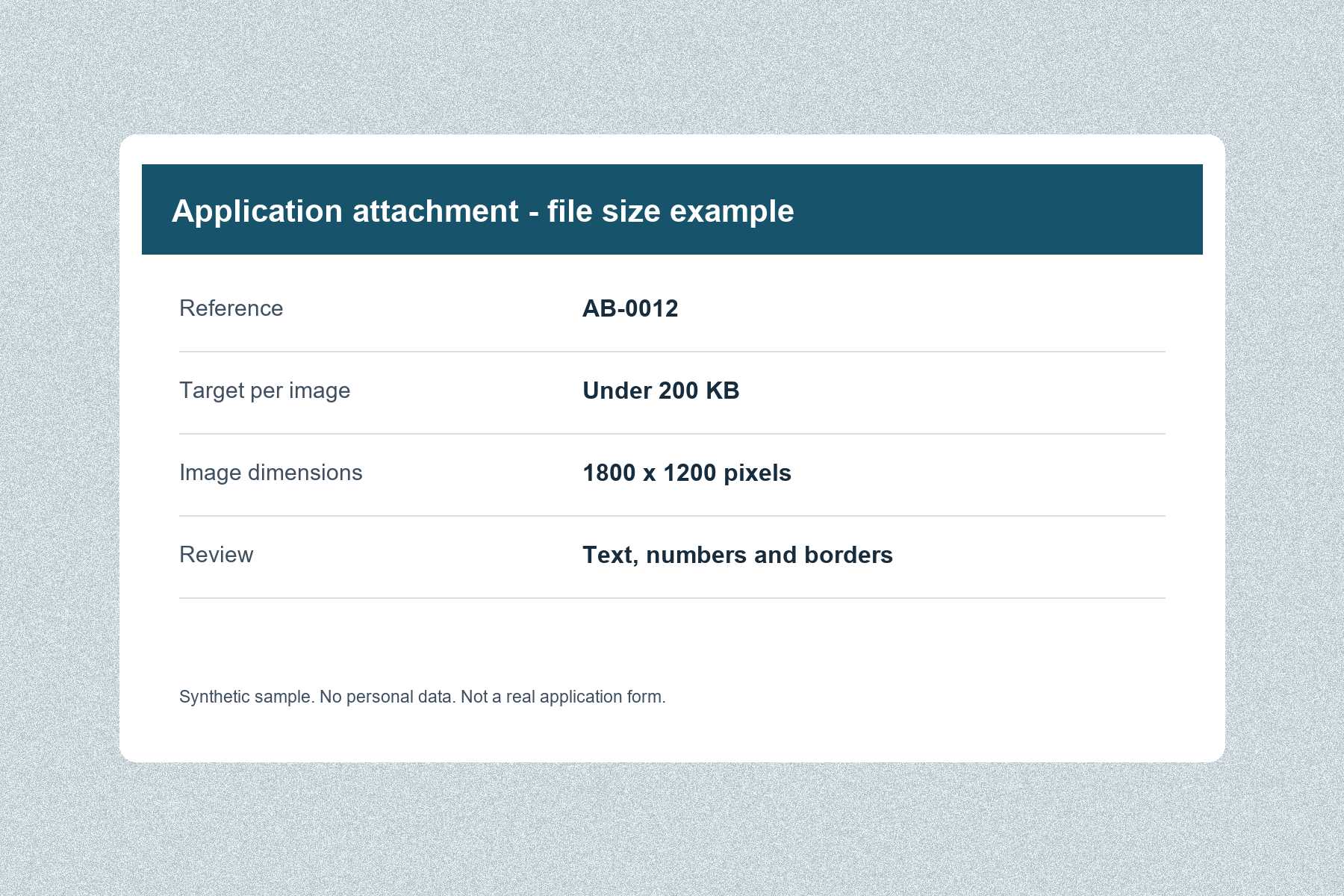
This synthetic attachment image uses English labels, text and numbers. It is a demonstration, not a real application form. The original PNG is 1800 × 1200 pixels and 1,585,009 bytes. Both JPG results retain those dimensions.
| Target setting | Result bytes | Bytes ÷ 1,024 | Below 200,000 bytes? |
|---|---|---|---|
| 200 KB | 203,614 | About 198.8 KB | No |
| 190 KB | 193,839 | About 189.3 KB | Yes |
Original PNG · 200 KB setting: JPG result · 190 KB setting: JPG result
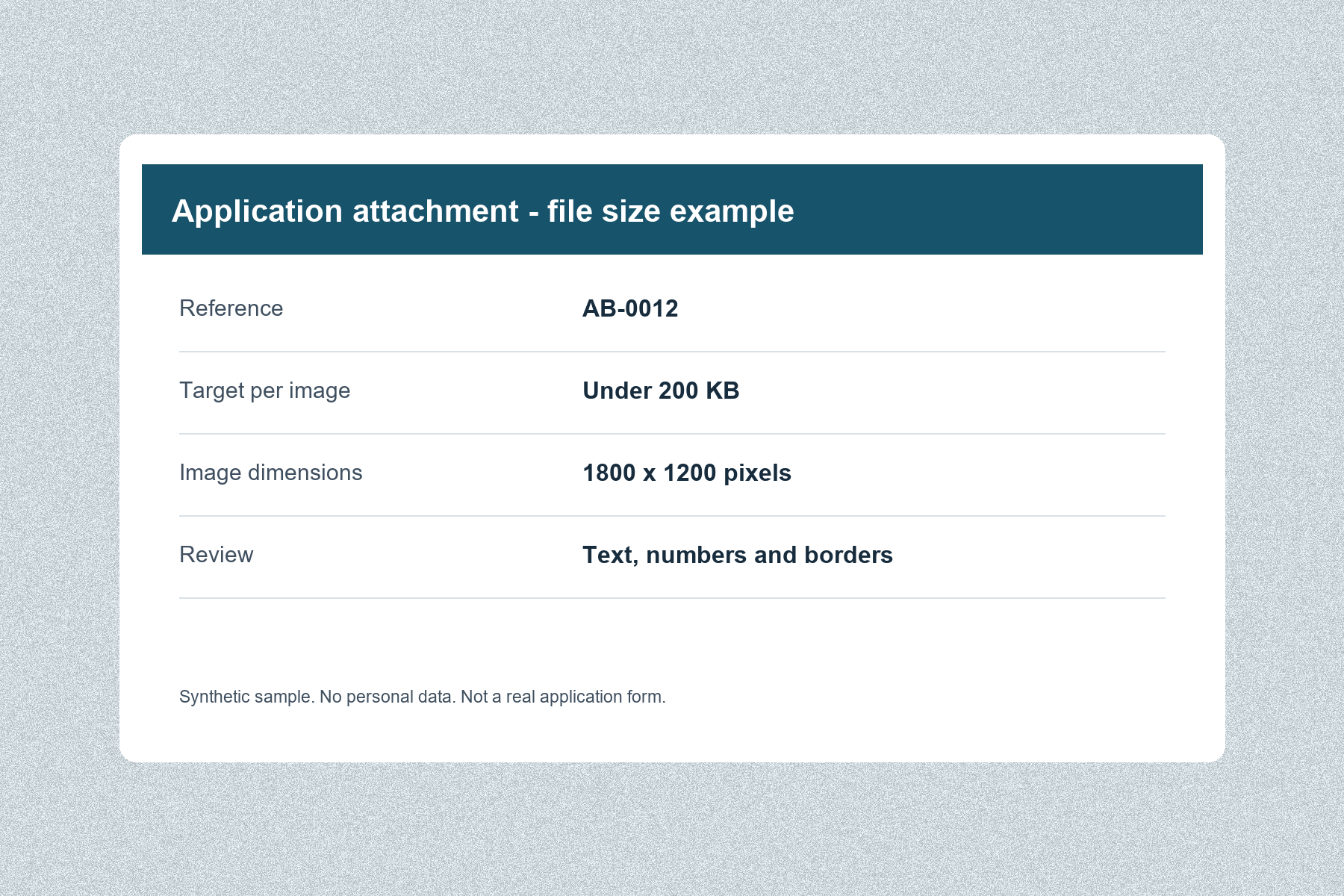
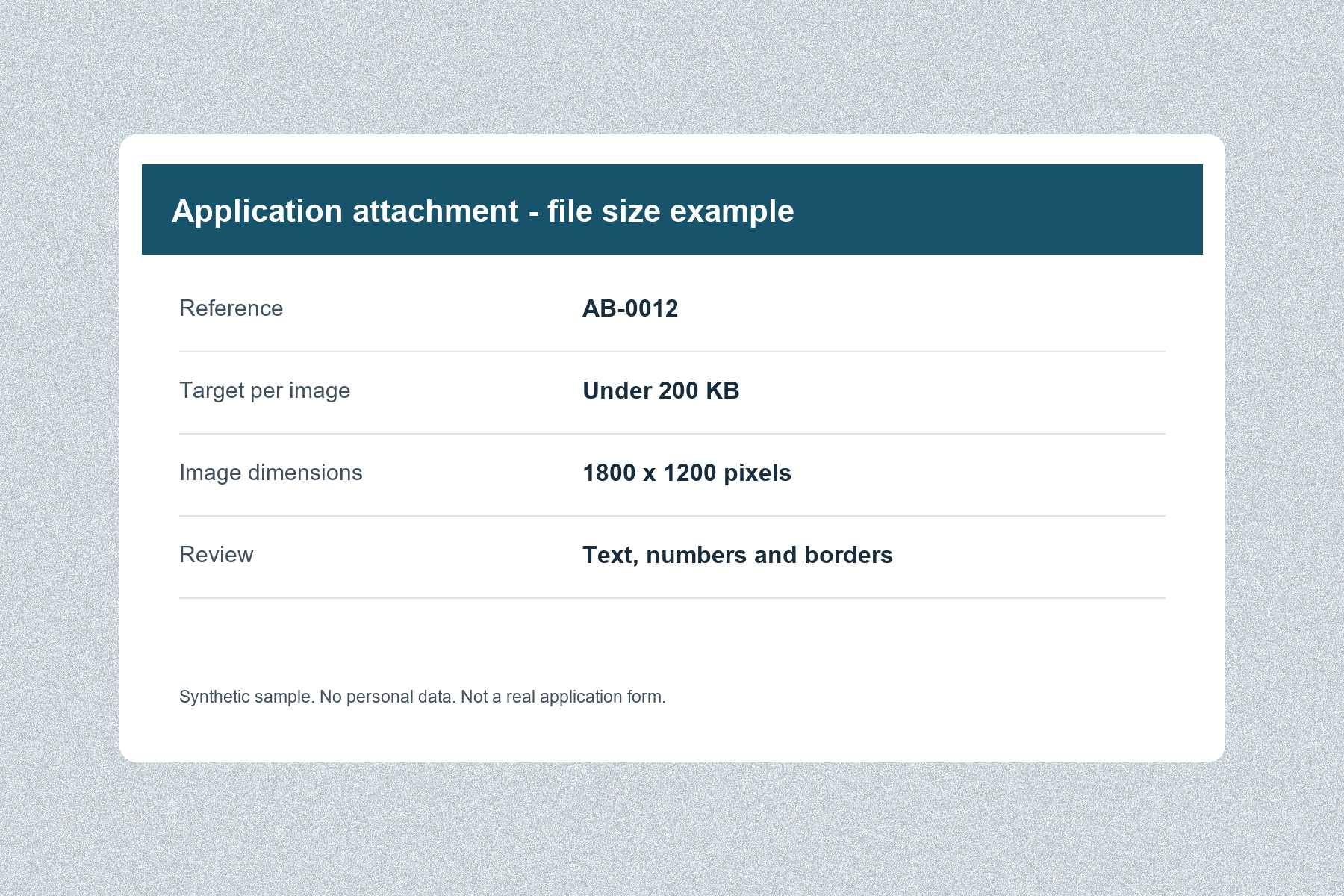
These public sample files are free to download. Your own results can differ with image content and browser. The example demonstrates the unit difference, not a guaranteed size or quality for every image.
Should I choose JPG, PNG or WebP?
JPG is a common choice for photos and forms that accept it. JPG fills transparent areas with white. WebP can preserve transparency, but the receiving site must support it.
The compressor outputs JPG or WebP. If PNG is required, use the image converter and check the final size again. Changing formats does not guarantee a smaller file.
Frequently asked questions
Can I make a file exactly 200 KB?
The setting is an upper target that the tool tries to meet. It does not pad a smaller image to an exact byte count. Check the receiving site’s actual rule.
Can I read this guide and try the sample without an account?
Yes. Reading and downloading the public samples are free. You can also process and preview your own images for free; downloading your processed results requires sign-in and an active online pass.
Does this support GIF, HEIC or animated images?
No. Use static JPG, PNG or WebP. Animated PNG and WebP are not supported.