
How to batch remove backgrounds from product photos
Add your product photos to the batch background remover and choose an output background for the whole batch. Use white for photos that need a uniform backdrop, or transparent PNG for layouts where the background will change.
Remove product backgrounds →
Process and preview for free. Downloading requires sign-in and an active online pass.
Choose one output background for the batch
- Choose or drop multiple static JPG, PNG or WebP photos.
- Set Output background to Transparent or White. Select Remove backgrounds and wait for the previews.
- Review every image and download the PNGs you want, either individually or together in a ZIP. You can change the output background after processing.
The checkerboard in the transparent preview marks areas with no background. It does not appear in the saved PNG. Both output choices keep the original image dimensions.
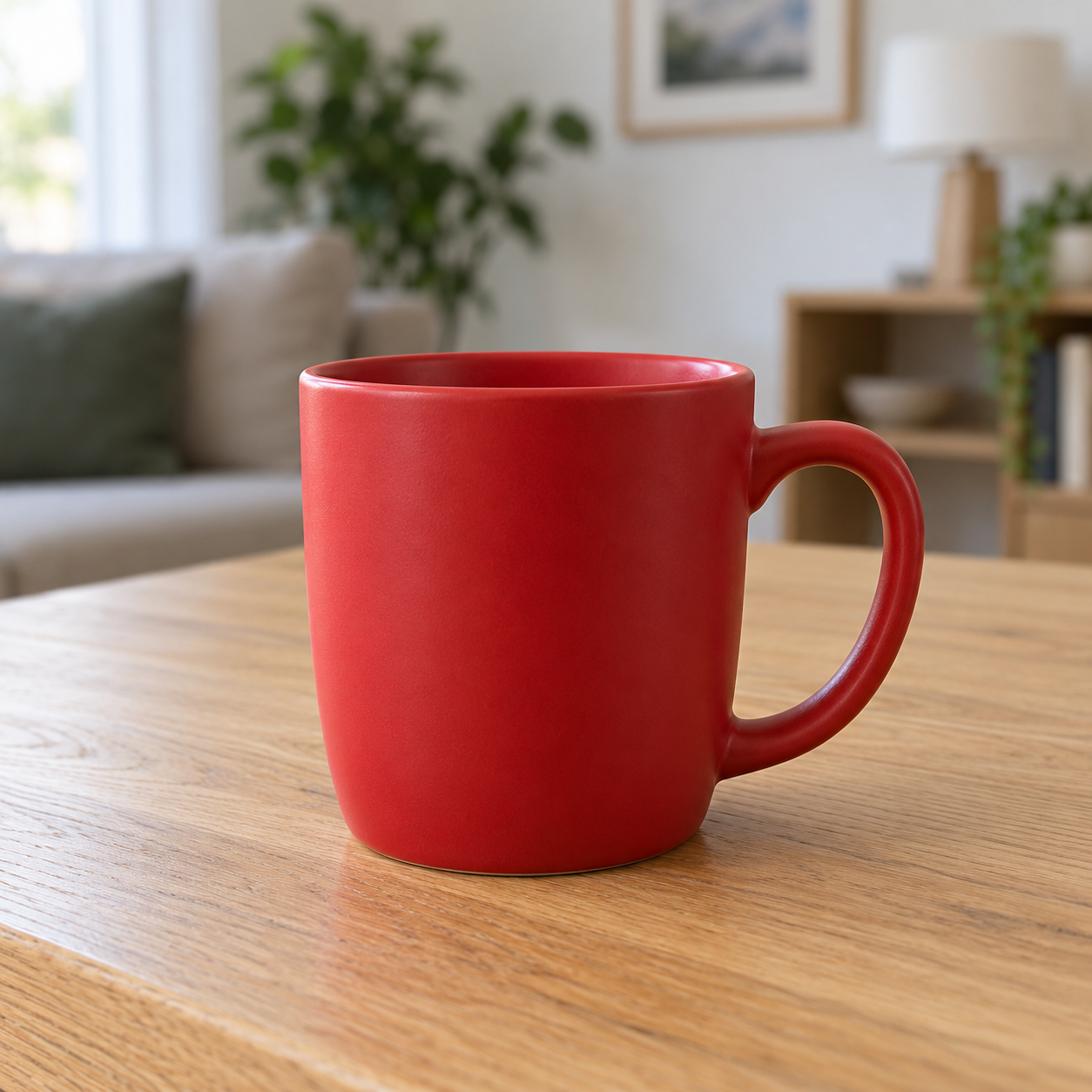
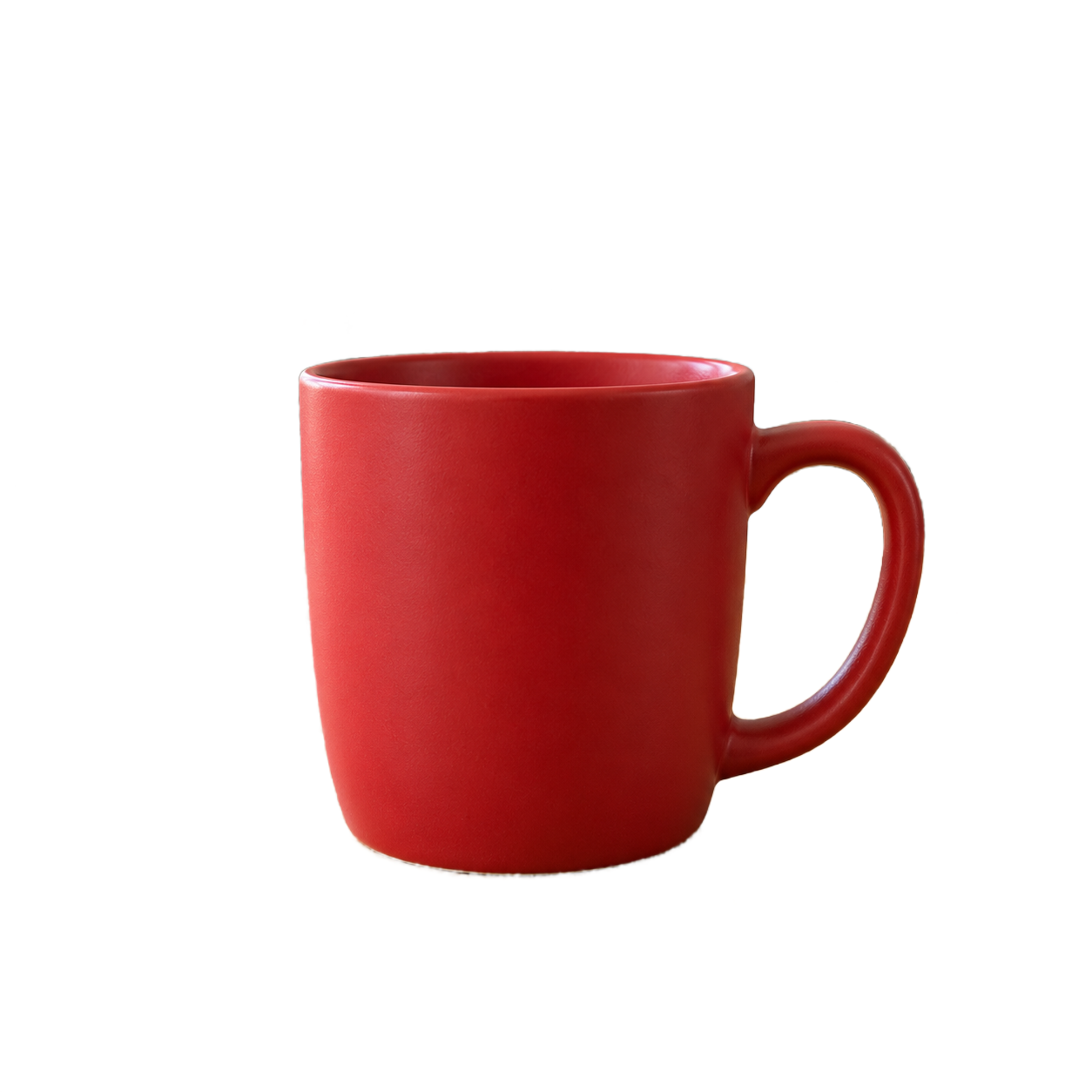
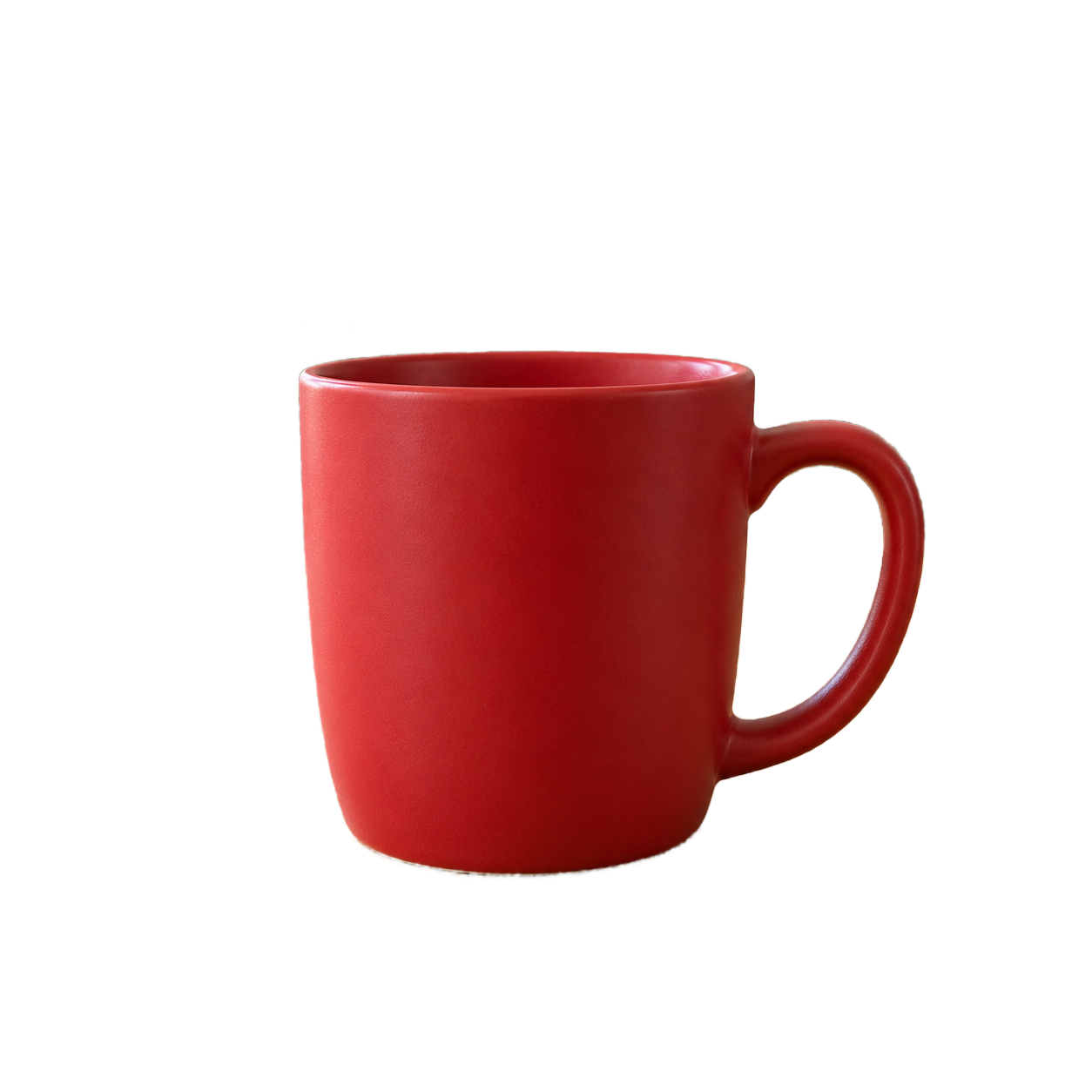
Compare a cup handle and the loops of a whisk
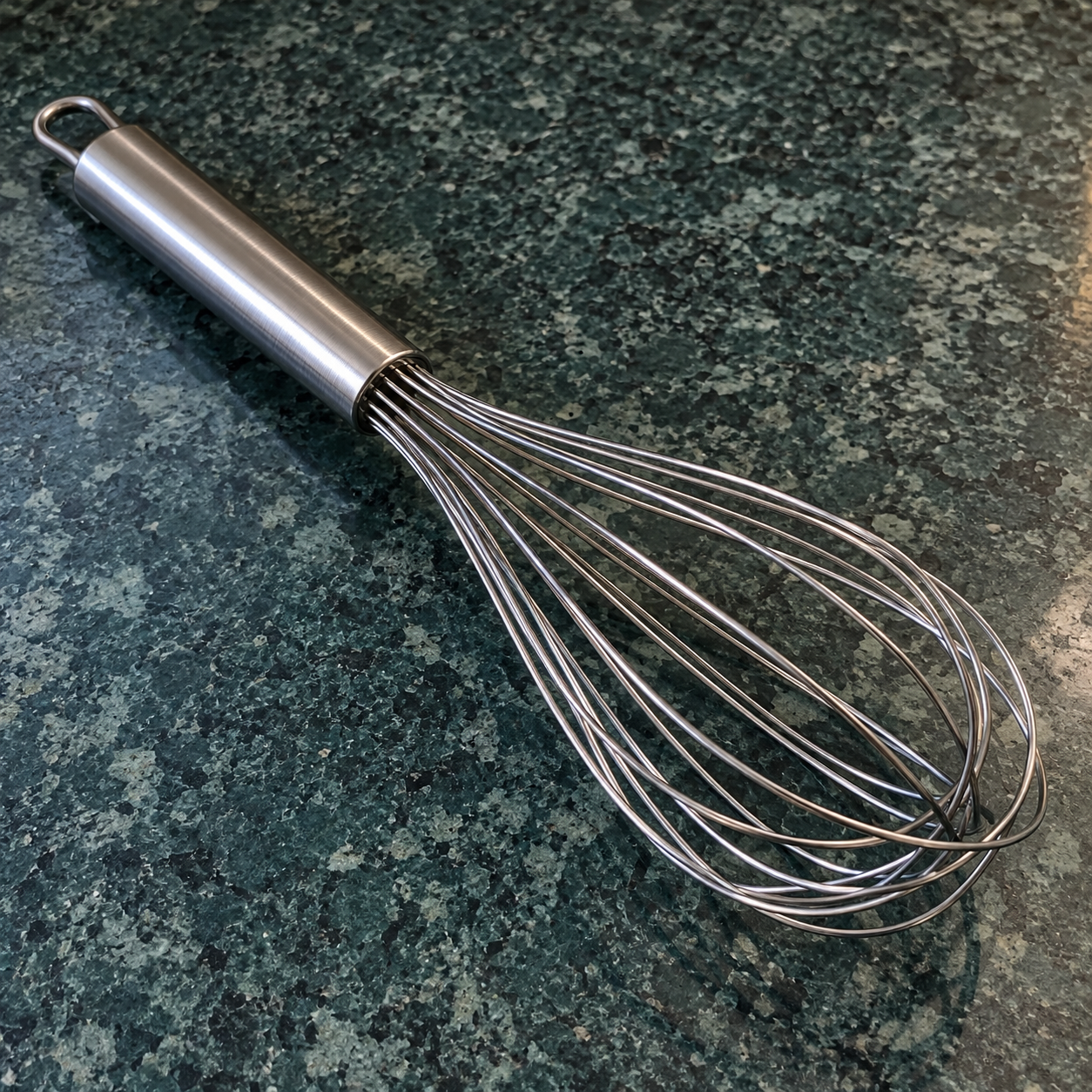
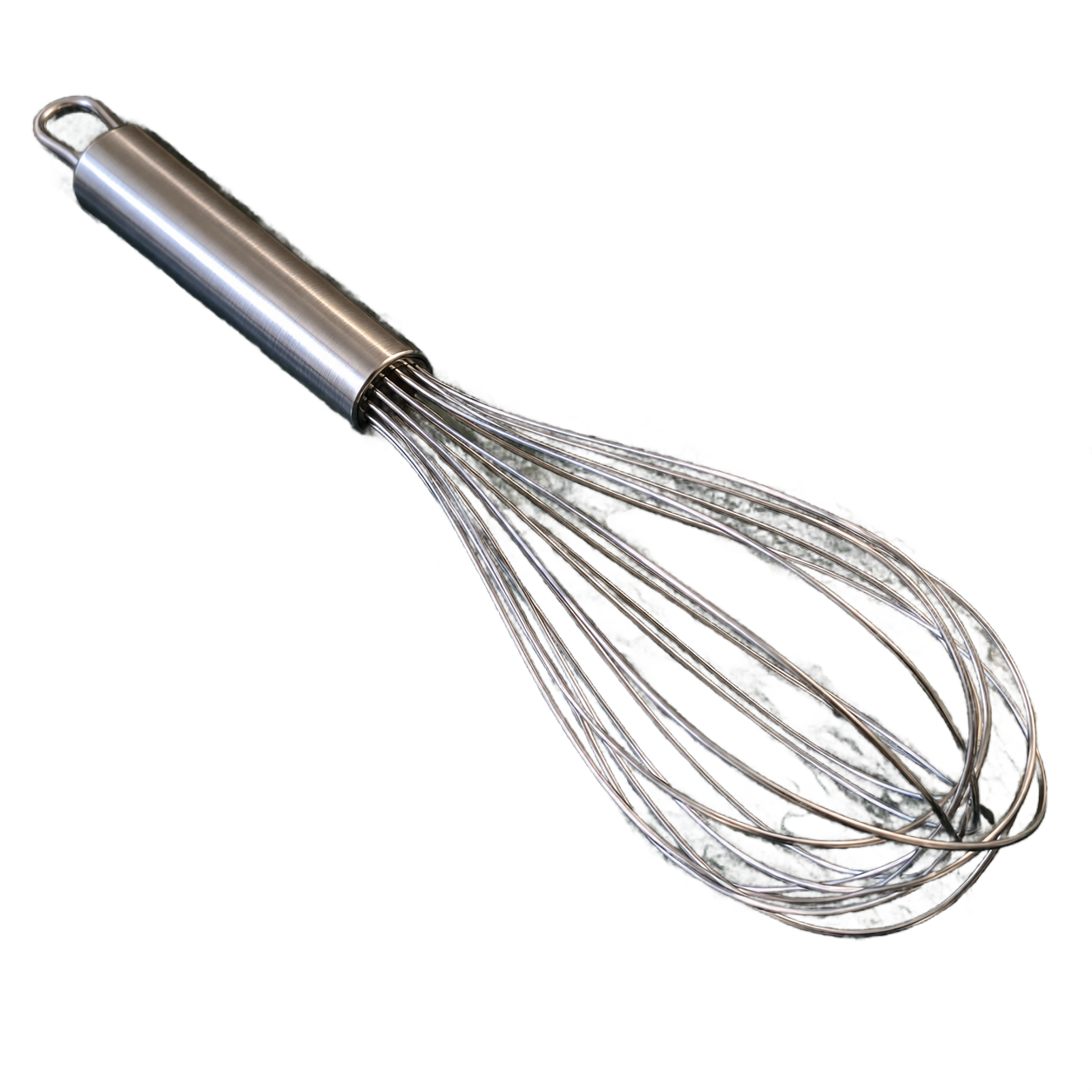
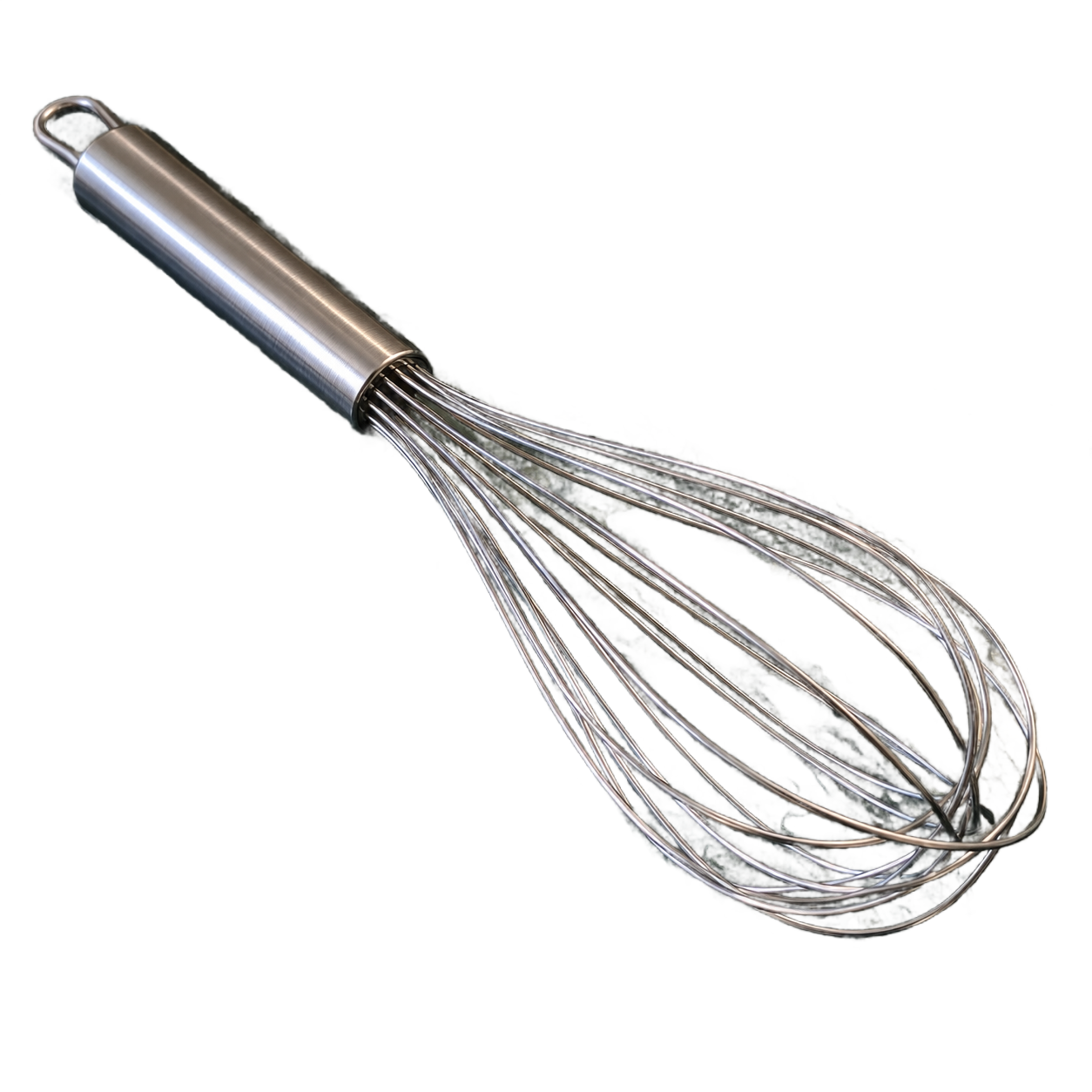
Try these two example photos together. Both images were processed in the tool. The whisk shows how fine details can retain bits of the original background.
Cup input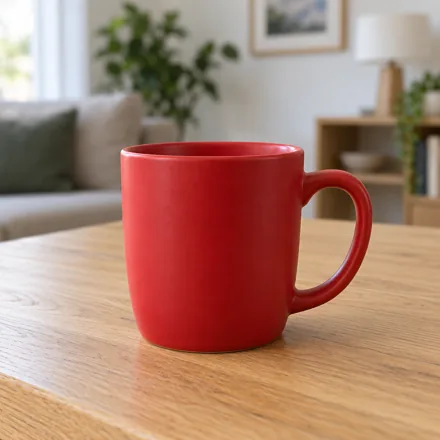
Transparent cup PNG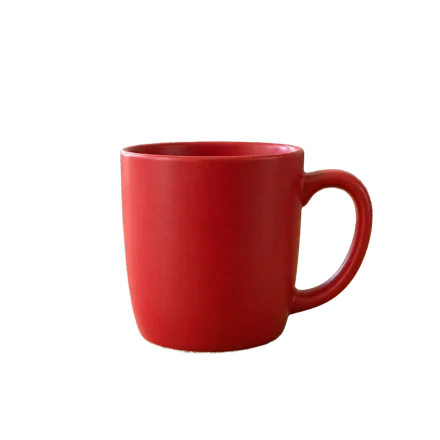
Whisk input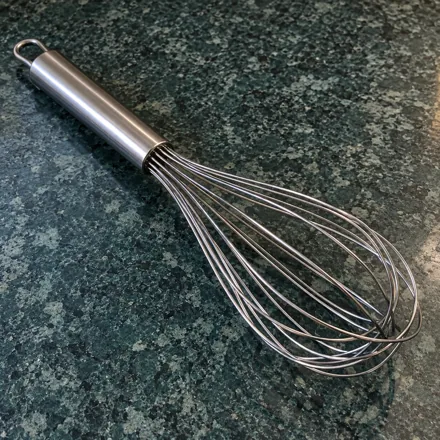
Transparent whisk PNG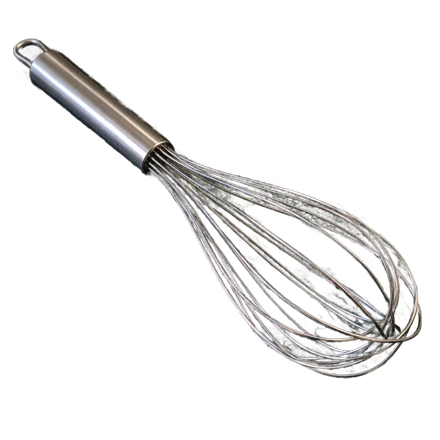
Check each result before uploading it
- Zoom in around handles, gaps, reflective surfaces and small edges. Try a clearer source photo if the cutout removes product details or leaves large patches.
- Check the target site’s size, file format and background requirements. The removal step keeps the original crop and dimensions.
- Keep PNG when the background needs to stay transparent. For a white-background image that must be JPG, use the image converter after checking the cutout.